
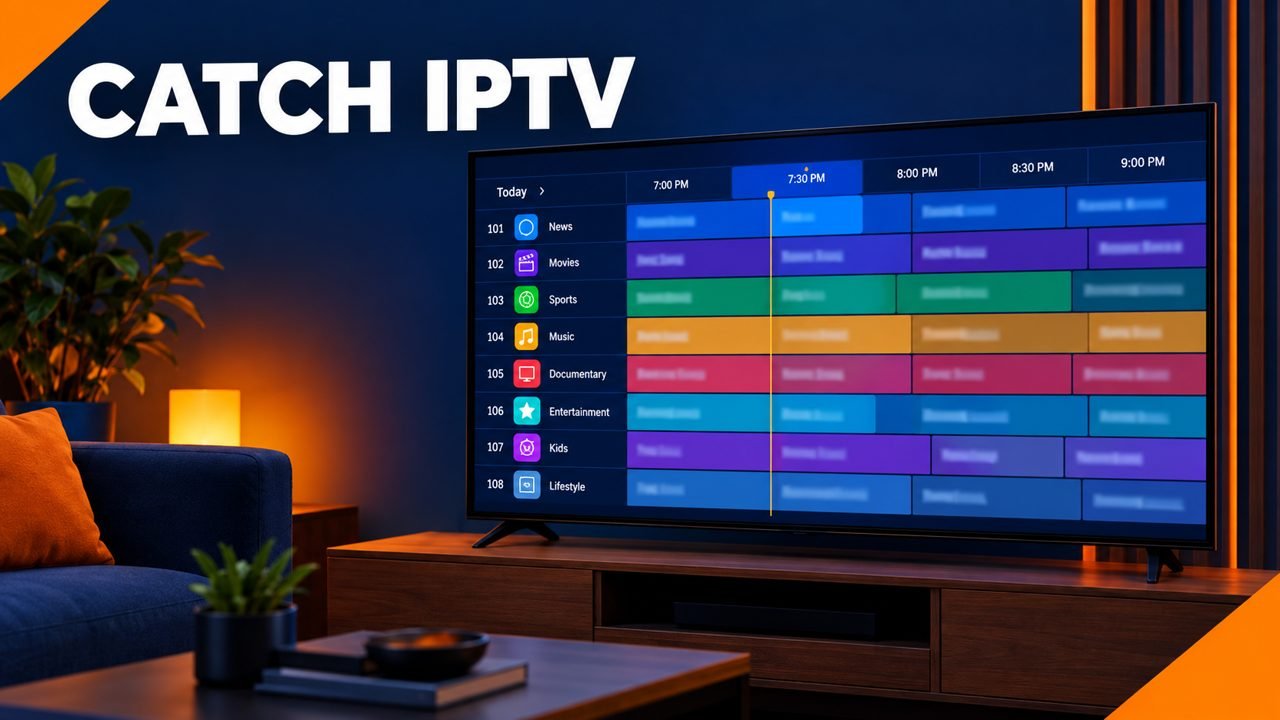
You open your player, the channels are there, and the programme guide is empty. Or the guide loads, but the shows are an hour off, or the information belongs to a different channel. If your IPTV EPG is not loading, you are not alone. The electronic programme guide, usually shortened to EPG, is a separate piece of data from the video, and it fails for its own reasons. This guide explains what the EPG is, why it breaks, and how to fix the six most common problems in the right order.
What is the EPG?
EPG stands for electronic programme guide. It is the grid that shows what is on now and what comes next, with titles, times and sometimes descriptions and artwork. In an IPTV player, the video streams and the guide come from two different sources. The channel list tells the app where each stream is. The guide data, often delivered in a format called XMLTV, tells the app what is playing on each channel at each time.
To show the right programme on the right channel, the app must match each channel to its guide entry using an identifier. If the match fails, the channel stays empty even though the video plays perfectly. That is why a blank guide does not mean the service is down.
The most common reasons a guide stays blank
- The guide has not finished downloading yet. Large lists can take several minutes the first time.
- The device time, date or time zone is wrong, so the app shows programmes at the wrong hour or hides them entirely.
- The app cache is full or damaged.
- The app is not set to refresh the guide, or the guide source is missing in its settings.
- The channel identifiers do not match the guide for that channel.
- The device is short on storage or memory, so the app cannot save the guide.
Fix 1: Wait, then force a refresh
The first load of a guide for thousands of channels can be slow, especially on a TV or a basic stick. Give it five to ten minutes with the app open. If nothing changes, open the settings of the app, find the programme guide or EPG section, and choose the option to refresh or update. Some apps do this only once a day by default, so a manual refresh after you add a new account is normal.
Fix 2: Check the date, time and time zone
This is the most overlooked cause. A guide shows programmes in a specific time zone. If your device uses a different one, or if the “set automatically” option is off, programmes will appear shifted or missing. Open the device settings, turn on automatic date and time, and confirm the time zone matches where you live. Then restart the app and refresh the guide again.
Some apps include their own “EPG time shift” setting, which adds or removes hours. If your guide is exactly one or two hours off, adjust this value and see whether the programmes line up.
Try Catch IPTV free for 24 hours
Fix 3: Clear the app cache
Stored guide data can become corrupted. In the device settings, open the app’s storage page and choose to clear the cache. If the problem remains, you can clear the data as well, but then you will need to sign in again and set up your playlist or login. Have your details ready before you do that, as described in our guide on the Xtream Codes login.
Fix 4: Confirm the guide source in the app
Some apps get the guide automatically when you use an Xtream-style login. Others need a separate guide address, especially when you use an M3U playlist. If the app has a field for an EPG URL, make sure it contains the address provided with your service. Paste it carefully without spaces, then save and refresh.
If your service provides no separate guide address, check that the app is set to use the guide that comes with the account rather than an empty source.
Fix 5: Match the channels to the guide
When only some channels have a guide, the problem is matching. Many players let you edit a channel and pick its guide entry manually. Open the channel’s options, find the EPG or guide mapping setting, and choose the correct entry from the list. This takes time for a large list, so do it only for your favourite channels. Alternatively, use the “auto match” function if your app has one.
Fix 6: Free up storage and update the app
A guide for a big channel list can be many megabytes. If the device storage is nearly full, the app may fail to store it. Remove unused apps and files, update the player to its latest version, and restart the device. Older apps sometimes have bugs that were fixed in later releases.
Fast fix
Wait for the first download, set the correct date and time zone, refresh the guide in the app, clear the cache, and map your favourite channels manually.
Fixes by symptom
| What you see | Most likely cause | First thing to try |
|---|---|---|
| Completely empty guide | Still downloading or no guide source | Wait ten minutes, refresh, check the guide setting |
| Programmes one hour off | Time zone or daylight saving | Set automatic time, adjust the EPG shift |
| Guide for some channels only | Channel mapping | Map your favourite channels manually |
| Guide disappears after a restart | Cache or storage problem | Clear the cache and free space |
| Guide very slow | Huge list on a weak device | Use favourites, hide unused categories |
Make the guide faster and lighter
- Hide the categories you never watch. A smaller list loads and updates much faster.
- Create a favourites list and use that as your main screen.
- Schedule the guide update for the night if your app allows it.
- Avoid running the guide update while other heavy downloads are going on.
- Use a cable connection on the device that downloads the guide.
Frequently asked questions
Does a missing guide mean my subscription is not working? No. The video and the guide are separate. If the channels play, the service is working.
Why is the guide correct on my phone but not on my TV? Different apps handle guides differently, and the TV may have a wrong time zone or less memory. Compare the settings on both.
How often should the guide update? Once a day is enough for most people. Many apps do it automatically in the background.
Can I use catch-up with the guide? That depends on the service and the app. Check whether your plan and the channel offer it before you rely on it.
Need a second opinion?
If you tried every step and the guide is still blank, contact us through the support page and include the app name, your device model, your time zone and whether the problem affects every channel or only some. That is what we need to find the cause quickly. If you would like to try a stream and a guide on your own device before you subscribe, start with the free 24-hour trial. Activation normally takes no more than two hours.
Need help or stuck on something? Our team knows TVs, devices, apps and IPTV servers well. Send us a message in the chat (the green WhatsApp button at the bottom left of this page) and we will help you fix it.